Crop one photo for every social platform
Every platform wants a different shape, and getting it wrong means your face is cropped off or the logo is cut in half. These presets are the current sizes, applied in one click, without sending your photos to an online editor.
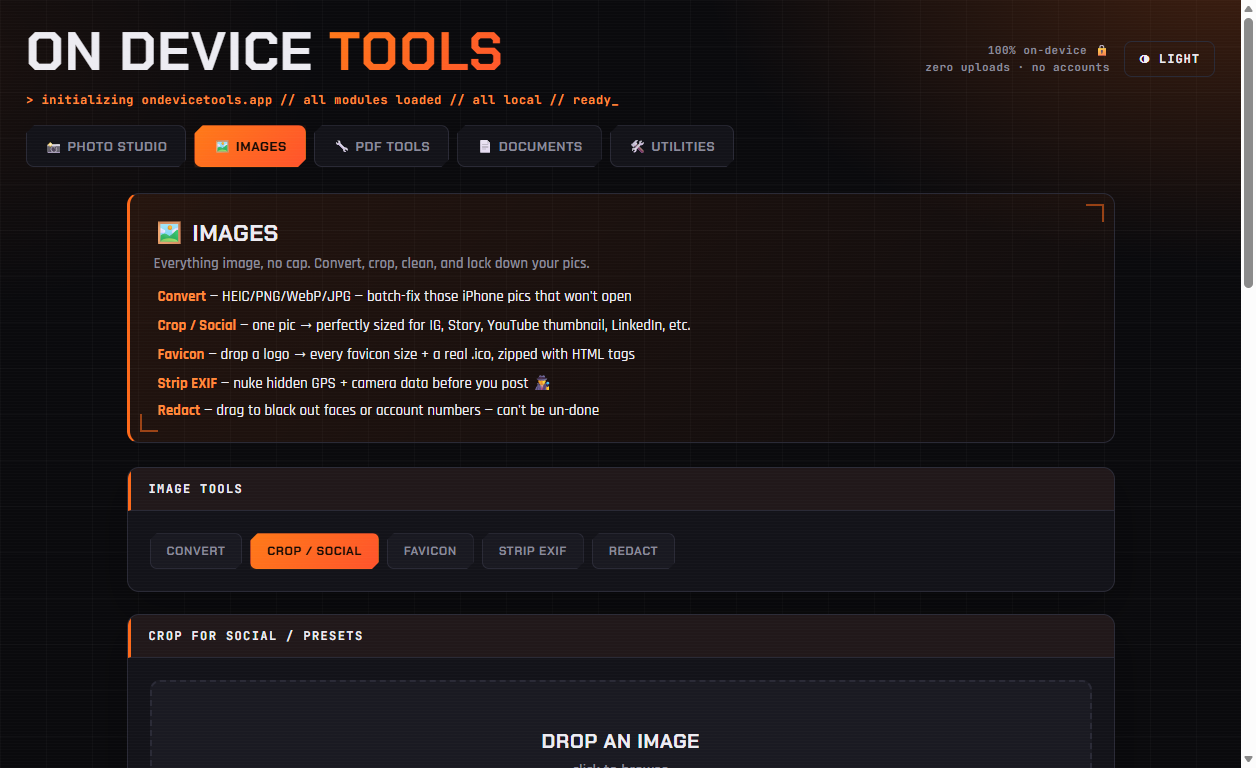
01Drop in the image
Open Images → Crop / Social and drop in the photo you want to resize. Start from the largest version you have — cropping down always looks better than scaling up.
02Pick the platform preset
Choose from Instagram square (1080×1080), Instagram portrait (1080×1350), Story / Reel (1080×1920), YouTube thumbnail (1280×720), Link preview / OG (1200×630), X header (1500×500) or LinkedIn banner (1584×396).
03Choose what stays in frame
The Focus option decides what survives the crop: Center for most photos, Top when the subject is a face or headline near the top, Bottom for landscapes and product shots.
04Render and download
Click Render to preview the exact result, then Download. Pick PNG for graphics and text overlays, JPG for photos.
Passport photos, HEIC conversion, PDF tools, resume builder, QR codes and more — nothing ever uploaded.
Get On Device Tools →