Convert iPhone HEIC photos to JPG — without uploading
iPhones save photos as HEIC, which half the world's software refuses to open. The usual fix — some ad-covered "free converter" website — means uploading your personal photos to a stranger's server. Here's how to convert them without any of that.
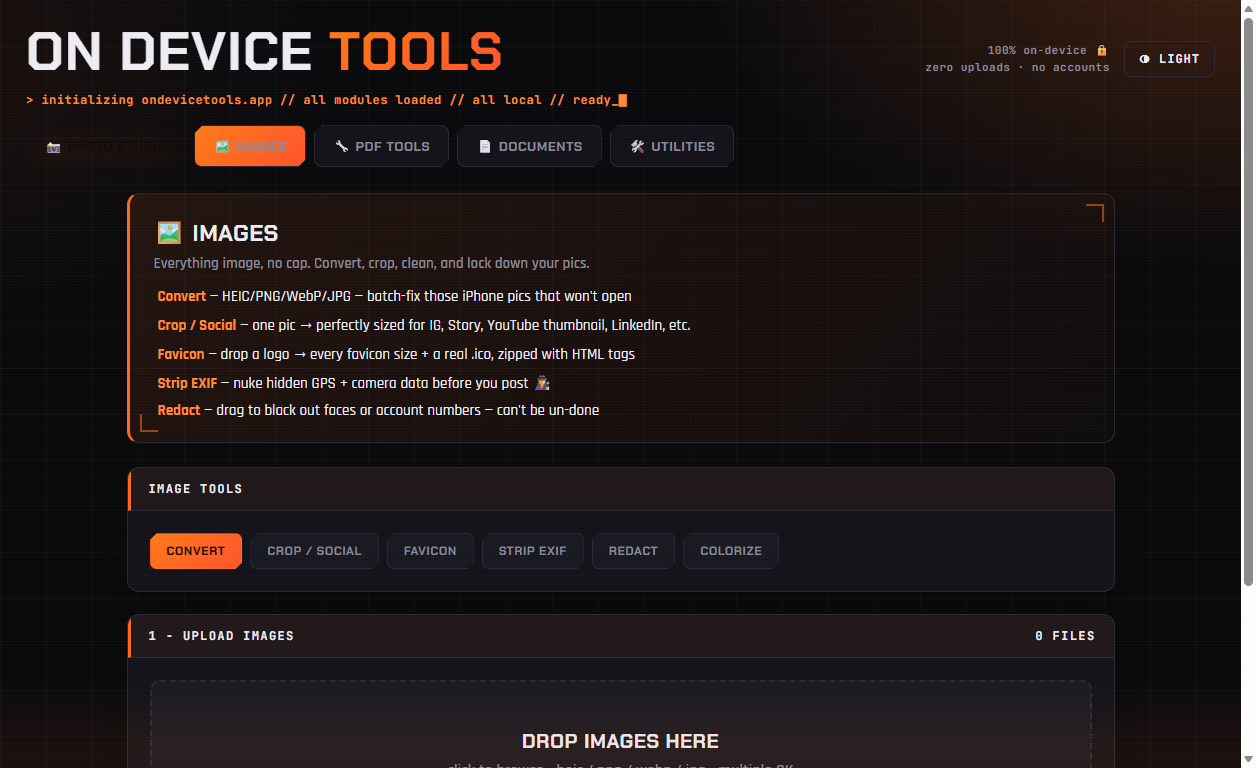
01Drop in your HEIC files
Open Images → Convert and drag in your HEIC files — one or a whole trip's worth. There are no file-size limits and no "3 files per day" nags, because there's no server involved.
02Choose JPG (or PNG / WebP)
JPG is the safe choice that opens everywhere. Pick PNG if you need lossless quality, or WebP for the web. A quality slider is there if you want smaller files.
03Convert and download
Click Convert — it happens in seconds, right on your machine — then download files one by one or grab everything as a single zip.
HEIC conversion, passport photos, PDF tools, resume builder and more — nothing ever uploaded.
Get On Device Tools →